 By keeping customer's mileage
up to date before and after the repair, you will have accurate records
for future reminders for additional services to the vehicle.
By keeping customer's mileage
up to date before and after the repair, you will have accurate records
for future reminders for additional services to the vehicle.Once an Estimate is authorized and the work has been completed, convert the Estimate to an Invoice for presentation to the customer for payment.
Record customer authorization to Estimate.
Update the current mileage of the vehicle.
Uncheck any part or labor items you do not want to bill the customer for.
Click Create Invoice.
By keeping customer's mileage
up to date before and after the repair, you will have accurate records
for future reminders for additional services to the vehicle.
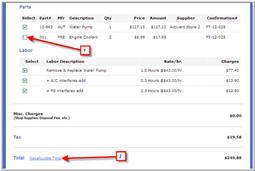
Uncheck items not required on Invoice.
Click on Recalculate Total link.
Click image to see a larger view.
 You may only change an Invoice prior to it being finalized.
If you
need to change an Invoice after it has been finalized, you will have to
generate a new Estimate and Invoice.
You may only change an Invoice prior to it being finalized.
If you
need to change an Invoice after it has been finalized, you will have to
generate a new Estimate and Invoice.
Recall the customer estimate if it is not already open.
Review Estimate and add any notes or updates.
Select Create Invoice at base of Estimate.
Review line items on Invoice and make any changes necessary.
If you make changes or uncheck line items on your Invoice
(1) , you must recalculate the total for the Invoice (2) for the change
to reflect on the invoice..
Click image to see a larger view.
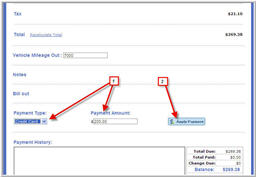
Select payment type from drop-down menu and apply payment amount.
Click Apply Payment.
Click image to see a larger view.
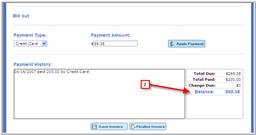
Service Estimator will allow you to apply partial payments should the customer wish to pay using more than one payment type or over time.
Select payment type.
Enter amount.
Click Apply Payment. Your invoice will now be updated with the balance remaining.
Click image to see a larger view.
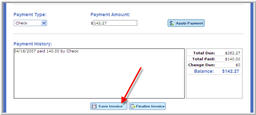
Use the Save Invoice feature when you:
Have completed the work but have not yet received payment.
Have received partial payment.
Need to add additional items to the Invoice.
Click image to see a larger view.
Navigate to Parts & Service tab.
Go to customer look-up screen and search for the customer by name or other search criteria.
Click Select and Continue.
Select View/Reprint Invoice from customer record.
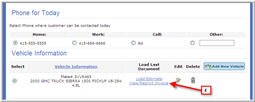
Click image to see a larger view.
Once a job has been completed and paid in full, you will finalize the
Invoice. The
Invoice will then show in your Invoice Report.You cannot edit an Invoice once it is finalized.
Recall the saved Invoice.
Apply payment and/or final notes.
Click Finalize Invoice.
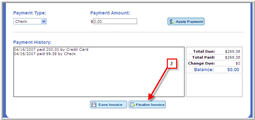
Click image to see a larger view.