 You must set up your profile information before you start
to create customer Estimates.
You must set up your profile information before you start
to create customer Estimates.This section explains the different sections on your Estimate page. For a step by step tutorial about creating an Estimate, click here.
You must set up your profile information before you start
to create customer Estimates.
Once you have a vehicle and customer selected, you may add and remove parts, labor and jobs by navigating the tabs at the top of the screen.
Add a New Customer
Complete the mandatory fields and click submit.
Find an Existing Customer
Use search criteria or simply click Search Existing for a complete list
of customers.
Select the vehicle that you wish to provide as Estimate for and input
attributes.All attributes are optional. All
Estimates require a vehicle; however you may create an Estimate without
adding a customer.
This section allows you to enter the customer’s concerns or vehicle problems.
This information will be displayed on the Estimate and
Invoice.
Click on Repair or Maintenance to browse available jobs or search based
on job description or code.
Related Jobs
This option will appear in cases where there are related jobs to the jobs
you search for or selected. Where a + sign appears
next to a labor operation on the job results page, this indicates additional
time which is labor time that should be added to your estimate to account
for additional work that may need to be performed depending on the particular
vehicle situation.
Where a * sign appears next to
a labor operation, this indicates a combination time. Combination
time refers to the time possibly required for jobs performed along with
other operations. Example,
during a timing belt replacement, it is noticed that the vehicle requires
a new camshaft sprocket. You
would use the combination time to determine the amount of extra time required
to replace the camshaft sprocket with the timing belt already removed.
You may select parts via the catalog, interchanging a part number or
by manually adding the part yourself. If you are manually adding a part, you will need to have the
part number and the manufacturer code available.
You may select labor via the catalog or by manually adding the labor yourself.
Navigate to the section of the Estimate you wish to edit.
Click on the edit item link in the top right part of this section.
By clicking on the trash icon you can delete the entire item or a specific section.
In order to add specific line items to a job that has
already been added to an Estimate, simply add the entire labor job again.
This will
ensure that all line items for that job are exposed. Once
you have added all items you want, delete the previous —
now incomplete —
duplicate labor job.
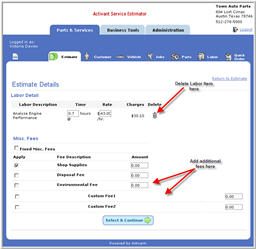
Click on image for more detailed view.
Once you have completed all the fields required for your Estimate select the Print Estimate button to produce a paper copy for the customer and/or your records.
If not already open, Recall Estimate.
Scroll to the bottom of the Invoice.
Record authorization using the drop-down list and then clicking Authorize.
Any change to the Estimate will require you to record
the customer authorization again.