In the Search Results page, there are three columns that indicate where a part is available:
-
Store - This is the location of the supplier you typically purchase from.
-
Network - These are one or more additional locations where the part can be purchased. Typically, Network locations are other locations of the supplier.
-
Distribution Center (DC) - Typically, these are warehouse or distribution center locations.
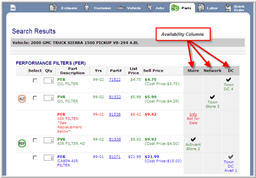
Click image to see a larger view.
There are three indicators that show if the part is available:
|
|
Available in full quantity, a solid black checkmark appears in that column. |
|
|
Available in partial quantity, a 'hollow' checkmark is displayed. |
|
|
If the part is not available, no indicator will appear, or the text Check with Store or Call for Availability will be displayed. |


Alternate and Replacement Parts
If the part is an Alternate Part (which means there is another part that you can use instead of the one that is shown), an ALT symbol will appear next to the part name. Rollover for information about which part this is an alternate for.
If there is a part that has been replaced with another brand or part number, a REP symbol will appears.
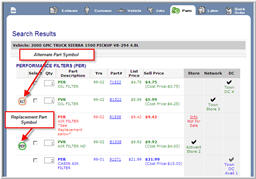
Click on image for larger view
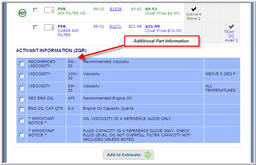
 Adding the Related Parts does not automatically order
the parts. You
can adjust the actual order when you place your order from the Estimate
page.
Adding the Related Parts does not automatically order
the parts. You
can adjust the actual order when you place your order from the Estimate
page.